
Opening a vintage family photo album from the 1960s, 1970s, or 1980s frequently reveals a frustrating phenomenon: vibrant family snapshots have turned into monochromatic sea of reddish-orange, sickly magenta, or murky yellow. Green lawn grass looks brown, blue skies have vanished into gray washouts, and family members appear sunburned with intense red facial casts.
This discoloration is not caused by scanner glare or surface grime; it is the natural consequence of chemical dye degradation in vintage color photographic prints. Fixing severe color shifts manually in desktop photo software requires advanced knowledge of RGB curve splitting and selective color masks. With modern deep-learning visual restoration, however, restoring authentic, natural colors takes only a few seconds. Below is your complete guide on how to color correct old photos with precision.
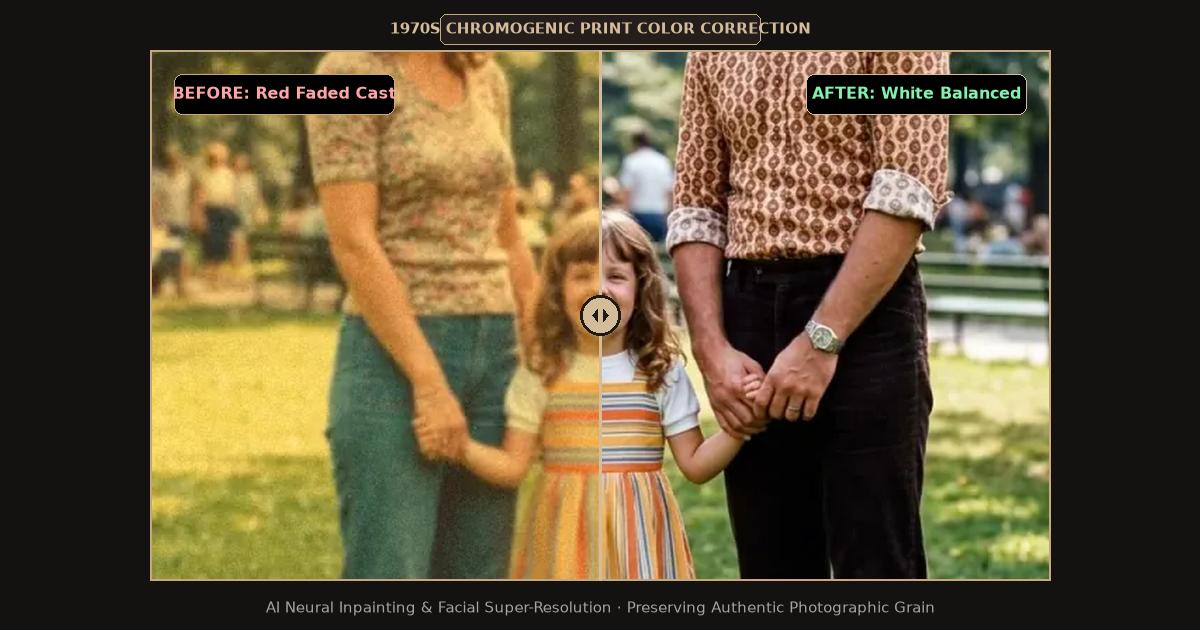
Split-screen comparison showing 1970s color print dye fading corrected with neutral white balance and lifelike skin tones.
Why Vintage Color Photos Turn Red, Orange, or Magenta
Understanding why old color photographs shift color reveals why basic brightness and saturation adjustments fail:
- The Three-Dye Layer Principle: Traditional color prints (like Kodak, Agfa, and Fuji paper) consist of three separate emulsion layers containing organic dye couplers: Cyan, Magenta, and Yellow. In combination, these three dyes produce the full spectrum of natural color.
- Uneven Photochemical Decay: Organic dyes do not age at identical rates. Cyan dye is chemically the most fragile and sensitive to ambient light and room temperatures. Over three to five decades, the cyan dye layer fades significantly faster than the durable magenta and yellow layers.
- The Resulting Red / Magenta Cast: With cyan depleted, the image histogram loses its complementary cooling balance. The dominant remaining magenta and yellow dyes combine optically, transforming the entire photograph into a fiery reddish-orange tint.
Diagnostic Guide: Color Shift Types and Root Causes
| Visual Color Cast | Primary Decades Affected | Degradation Mechanism | Recommended AI Correction |
|---|---|---|---|
| Heavy Magenta / Red Cast | 1960s – 1980s | Severe cyan dye exhaustion | Neural cyan channel reconstruction & RGB balancing |
| Yellow / Sepia Tint | 1880s – 1950s (Monochrome) | Metallic silver oxidization + paper acid | Paper base whitening & true black point restoration |
| Green / Murky Olive Cast | 1950s – 1970s (Certain brands) | Magenta dye fading under dark storage heat | Selective magenta reintroduction & foliage masking |
| Sun Bleached Flatness | Framed prints (Any era) | UV radiation destroying all color layers equally | Contextual contrast expansion & color saturation synthesis |
Why Manual Color Correction Sliders Fall Short
When people attempt to fix a magenta-shifted 1970s photograph in standard editing apps, they usually try to adjust the Color Temperature or Tint sliders:
- Shifting Tint Toward Green: While pushing the tint slider toward green reduces the overall magenta cast, it turns human skin a sickly, unnatural olive green and turns neutral white shirts turquoise.
- Desaturating the Image: Lowering global saturation merely turns a bright red-cast photo into a muddy brown, washed-out print.
- Histogram Posterization: Manually stretching a faded 8-bit digital scan introduces harsh color banding across skies and cheekbones.
Deep-learning AI vision engines don’t apply flat global filters. The neural network recognizes specific semantic objects in the photo: it identifies faces and knows what healthy human skin reflectance looks like; it identifies foliage and recalculates lush chlorophyll green; and it identifies clouds and clothing to anchor neutral whites accurately.
Step-by-Step Guide: Color Correcting Old Photos with AI
Follow this simple workflow to restore natural, lifelike color to your vintage snapshots:
1. Digitize in 24-Bit RGB Color
Place your discolored print on a clean flatbed scanner. Scan at 600 DPI to 1200 DPI in 24-bit RGB Color. Never scan in black-and-white or grayscale mode, even if the photo looks almost monochrome. The residual color information in the dye layers provides the raw mathematical data the AI needs to calculate the original color balance.
2. Upload to the Restoration Workspace
Navigate to the FreePhotoRestoration Free Online Tool and upload your scanned image:
- Select the Color Correction and Restoration pipeline.
- The vision system performs an automated semantic segmentation pass, mapping out sky, clothing, hair, foliage, and skin tones.
3. Automated Neural Color Rebalancing
The AI executes three synchronized color transformations:
- Neutral Point Normalization: Analyzes background highlights (such as white tablecloths, clouds, or paper borders) to re-establish a true, uncolored white point.
- Dye Channel Re-Synthesis: Restores the depleted cyan dye curve, counteracting the dominant magenta and yellow layers to reveal hidden blues and greens.
- Skin Tone Calibration: Rebalances facial hemoglobin and melanin values, restoring natural, healthy skin warmth.
4. Review and Export in 4K Ultra HD
Use the interactive split slider to compare the original faded snapshot with the vibrant, color-corrected render. Download your finished photograph in 4K Ultra HD (4096px).
Protecting Color Prints Against Future Fading
Once your family photographs have been restored digitally, protect the physical originals. Store vintage color prints inside acid-free, lignin-free archival envelopes in a cool, dry room. Never display original vintage color photographs under direct sunlight or unshielded fluorescent lamps without UV-filtering acrylic glass.
Related Guides and Reading
- Restoring Faded and Yellowed Vintage Photographs — Deep dive into silver oxidation and paper acid decay.
- How to Colorize Old Black and White Photos with AI — Adding realistic color to early monochrome prints.
- How to Restore Old Photos Online with AI: Complete Guide — Full master tutorial from scanning to 4K enhancement.
- Unblur Face in Old Photos: AI Facial Reconstruction Guide — Clarifying soft and out-of-focus ancestor portraits.